N64 Emulator Released For iPhone 3GS & iPod Touch 3G

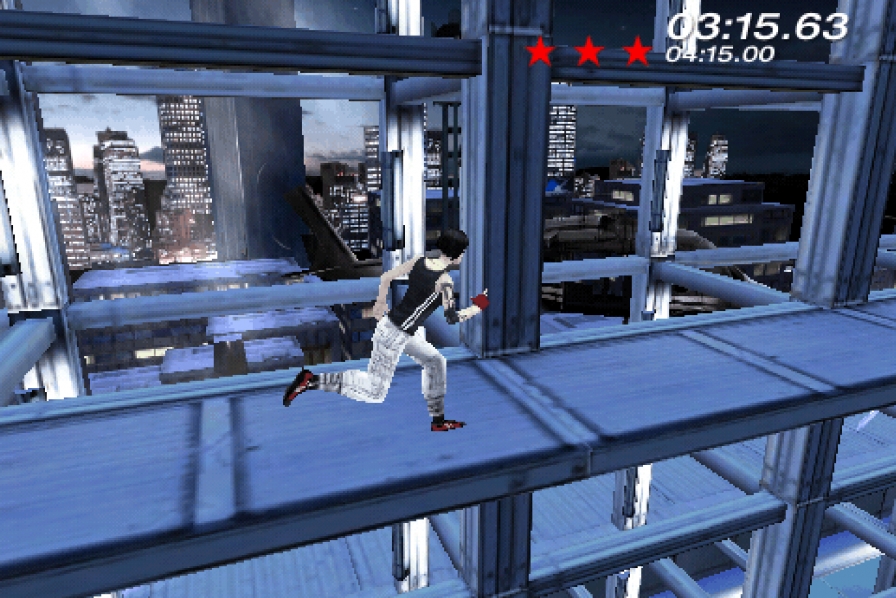
ZodTTD today released his N64 emulator for the iPhone 3GS and iPod Touch 3G, a while before expected. A 14-year-old developer had begun work on a N64 emulator, slated for release in Spring but ZodTTD beat him to it.

It is a port of mupen64plus along with Ari64’s ARM Dynarec, and Adventus / Orkin’s OpenGLES GPU. Since the graphics processing unit (GPU) code is written with the OpenGL ES 2.0 specification, it limits the devices able to be used to the iPhone 3gs and iPod Touch 3rd Gen as of the current Apple lineup.

The current version sports:

  • Support for the Wii Remote via Bluetooth;
  • Emulation dynarec fast CPU;
  • Emulation of sound;
  • Download the ROM of games from the same;
  • Using Open GL libraries | ES 2.0;
  • Supports ROM:. N64 and. Z64 and archives. Zip and. Gz

n64iPhone is available now from Cydia.

Related:
N64 iPhone Emulator Coming in Spring 2010

N64 iPhone Emulator Coming in Spring 2010

A N64 Emulator is the works for the iPhone 3GS and 3rd generation iPod Touch. The emulator called 3G4 has been created by a 14-year-old boy. This could be the first native N64 emulator for the iPhone, however ZodTTD has been working on an emulator for some time, but unfortunately we haven’t heard any news in a long time.

There are of course the usual problems with any project in development such as “duplicate button registers, delay of presses, and crashes when heavy gameplay occurs. ”

The emulator has an expected release of Spring 2010, according to the developer.

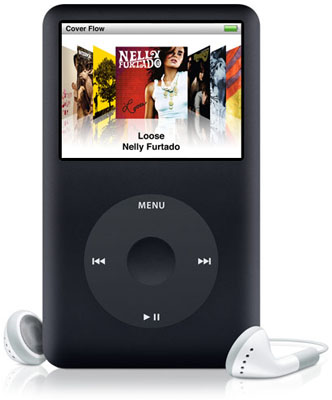
iPod Classic & iPod Nano Being Phased Out By Apple?

Latest reports hint that Apple are trying to slowly phase out the iPods that feature the trademark Click Wheel. It seems strange as they just re-released the iPod Nano with video support.

Joystiq reported on some upcoming games, they happened to mention that some of the original Click Wheel games, Song Summoner and Song Summoner 2, were coming to the iPhone soon. However Song Summoner 2 never was released for the iPod because apparently Apple has abandoned the Click Wheel game format. Perhaps this means that Apple wants to move to cheaper iPod Touches to maximize profit from the App Store but also keep the Shuffle.

The App Store still offers a big amount of iPod Click Wheel Games from the iTunes Store, but no new games have been released since Cake Mania 3 in February of 2009. Apple had introduced iPod Click Wheel Games with the release of iTunes 7 in September 2006 and a total of nearly 50 games were released over the next 2 and a half years.

These reports are not confirmed yet and so are still rumours, it may not mean that Apple are ditching the iPod Classic and iPod Nano but maybe focusing their attention elsewhere, on the Apple Tablet perhaps?

iDashboard 1.0 for iPhone Released

iDashboard v1.0 has been released by WyndWarrior, it’s an iPhone utility which mimics the widget functionality of Mac OS X.

A multi page dashboard for your iPhone! Features a world clock, a calendar, a weather widget, a working calculator, lockscreen dashboard, and double-tap Dashboard. Also will have available widget packs for download in Cydia. Customization features include: wall-papers with auto-dim and the ability to change wallpapers through the photo app.

iDashboard

Steven Troughton-Smith is developing a similar application, which is not yet released.

iPhone Dev-Team Release PwnageTool for 3.1

The iPhone Dev-Team has just released there latest jailbreaking tool, PwnageTool for iPhone OS 3.1. At the minute the Jailbrakejailbreak is for Mac only but hopefully a Windows version will be released soon.

Read More

Download (Torrent)

This release starts with PwnageTool 3.1 for Mac OS X – this application supports the iPhone 1st Generation (2G), the iPhone 3G and the iPod touch 1G. NB: THIS DOES NOT SUPPORT THE 3GS OR 2G/3G IPOD TOUCH. redsn0w for Mac OS X and Windows will follow sometime in the near future, please don’t bug us about it – we’ll release when we have something ready.

  1. GOLDEN RULE: If you are using a 3G iPhone with ultrasn0w and rely on ultrasn0w to obtain cellular service, then you should only upgrade to 3.1 with a PwnageTool created .ipsw. – Stay away from Apple’s direct updates as described here and here please get up to speed on the whole subject by reading the information contained in these posts.
  2. If you have an original iPhone (1st generation) then 3.1 unlock works with this PwnageTool release. iPhone 3G users upgrading to 3.1 will need to continue using ultrasn0w with a PwnageTool created 3.1 .ipsw
  3. Please read all parts of this post before downloading and using these tools.
  4. Read items 1, 2 and 3 again and again.
  5. At the bottom of this post are the bittorrent files for the 3.1 capable version of PwnageTool.
  6. This app is suitable for the recent 3.1 release.
  7. This version of PwnageTool will NOT work for the iPhone 3GS.
  8. PwnageTool WILL work for Original iPhone (1st Generation), Original iPod touch (1st Generation) and the iPhone 3G.

iPhone 3G & iPod Touch Can Now Edit Video

Due to the recent 3.1 iPhone OS update, the iPhone 3G and iPod Touch are now able to edit video just like the iPhone Apple Logo3GS. Both devices still can’t record video, unless jailbroken, so this may not come as a big tool for most people.

To get it to work, first you must get someone to email you a video file. Once you have it, you can open the email and select the arrow on the lower menu bar. This will give you five options: Reply, Reply All, Forward, Save Video and Cancel. Once you select Save Video, the video will get saved to your Camera Roll.

Go to the Camera Roll and select the video, you are then able to watch the video and edit it. To edit a video, tap on the timeline at the top of the page, you can then drag your finger to the start and end points on the video. When you select trim, you then have the option to trim the original video or save the trimmed potion as a new clip.

iPod Updates At September Apple Event

Steve Jobs made his return today on stage, to announce an update on all iPod models. However the rumors did not all Special Edition iPod Shuffleturn out to be true, as there was no iPAD and no camera for the iPod Classic or iPod Touch, however the news about the delay in manufacturing the new iPod Touch device seems like they might announce a camera model later.

iPod Touch

The iPod Touch got a minimal update, however there is still maybe hope for the camera model. But all Apple announced was a size increase, up to 64GB; and a price drop which will be a good thing for the iPod market.

8GB – £149 / $199
32GB – £229 / $299
64GB – £299 / $399

iPod Classic

The iPod Classic was also rumored to get a camera, however it didn’t happen but they have made the device slimmer and also bumped up the memory but kept the price.

160GB – £189 / $249

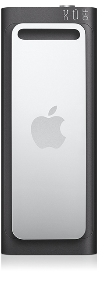
iPod Nano

iPod Nano now has a VGA camera capable of shooting H.264 video at 30fps, just like the iPhone 3GS. It’s still comes in 8GB and 16GB models and in the usual array of colours. It has a larger 2.2 inch screen and comes with a microphone and speaker.  And now has the VoiceOver feature like the shuffle does. It has a FM radio tuner now also built in and a voice recording app, exactly like the iPhone’s.

8GB – £115 / $149
16GB – £135 / $179

iPod Shuffle

The iPod shuffle has now got new colours: pink, green, blue, black and silver. And a special edition model.

2GB – £45 / $59
4GB – £59 / $79

How To: Disguise An App

So let’s say you have an App on your phone that you really need, but other people would keep going on it and you don’tDisguise App really want them using it or seeing what it is. Well there is a simple way to disguise an app on your iPhone as anything you want.

Let’s say the app we want to hide is Cycorder.

Getting Started

First of all you have to SSH into your device and go to your Applications folder and open the relevant folder, in this case being Cycorder.app.

Once this is opened you will see the following files:
Cycorder
icon.png
info.plist
loading.png

Note: these will vary on application, but the files needed will remain the same.

Now copy the files icon.png and info.plist to your computer.

Before editing either it’s a good idea to backup the files just in case you go wrong.

Editing The Icon

People using the iPhone will most likely use icons to refer to an app, so changing the icon of the app you wish to hide is the first thing to do.

First you need to get the icon from another app or you could make one yourself. Simply pressing the Home button and Sleep/Wake button will capture a screen shot of your home screen and you edit the icon to the correct size etc.

Note: Always save the icon as a png image and make sure it’s transparent.

Downloading a free app off the App Store would maybe be a better idea for this as it gives you a quick and disposable way to disguise an app. However think about if people are likely to click on it, so find something boring.

Once you’ve edited and saved your new icon, save it as a png and copy it back to the app folder on the iPhone, replacing the original.

Changing The Name

The second way people will know which app is which, is via the name underneath the icon (which by now you will have changed).

To change the name simply open the plist either using a text editor or a dedicated plist editor such as iPodRobot’s plist editor.

Look at the plist and find the tag called
<key>CFBundleDisplayName</key>

and change the value below it what you wish the app to appear as on the home screen.

Once this is done, save the plist and copy it back to your device, overwriting the old one.

Now re-spring or re-boot your device and the application will now be disguised.