The End Of Unlocking Coming Soon?

After today’s announcement from Telefonica Europe that O2 will unlock their iPhones to every network once the Apple iPhone 3G WWDC 2009iPhone is released on other networks means that perhaps other countries will have to follow suit and therefore perhaps the end of hacking to unlock the iPhone. Blacksn0w is the latest unlocking tool from GeoHot which unlocks the latest baseband, however I’m wondering as if to how they will roll out the unlock, either by a carrier update or software update I assume. But if so it won’t take a hacker too long to work out how it’s being unlocked and simply apply it to other phones making it harder for Apple to play the cat and mouse game.

The CEO stated that iPhones will be unlocked once the contract is up, but on Pay As You Go there is no contract so surly they should be sold unlocked, however the way it was started it seems that you have to go to get it unlocked and it won’t just be rolled out. And although I’m going to keep using O2 if they roll this out I’m going to unlock my 8GB iPhone 3G before I sell it to upgrade to a 3GS. Hopefully the rest of the world follows suit and the iPhone becomes a network free device.

O2 Will Allow Unlock For UK iPhone’s

O2 the current exclusive retailer of the iPhone and iPhone 3GS, although not for long; will be allowed to unlock their O2iPhones to other carriers as long as it’s the end of their contract period according to the CEO of O2’s parent company, Telefonica Europe. “Once the iPhone becomes available on other UK networks,” says Matthew Key, “we will allow O2 customers to unlock their iPhones, although of course they will still need to honour any outstanding contract period they have. At the end of their contract period, they are entirely free to move to another operator — though naturally we hope they won’t want to!”

Orange is starting to sell the iPhone from November 10th and Vodafone will be joining in on the iPhone in early 2010. O2 have had exclusivity on the iPhone since 2007 but once released on Orange and Vodafone an unlock will be allowed.

How To: Change Your iPhone’s SSH Password

As many have been prompted by the recent icident, including Dutch iPhones on T-Mobile, the SSH on the iPhone has a default password which most people do not change, leaving themselfs unprotected. Here’s the quick guide to change your root password on your iPhone.

MobileTerminal

Please note that some guides will change the mobile password, however this will still leave you unprotected so ensure you follow these instructions carefully.

  • Download ‘MobileTerminal’ from Cydia.
  • Run MobileTerminal
  • Type ‘passwd’
  • Enter your new password
  • Enter it again
  • Type ‘su root’
  • Then Type: ‘alpine’ (iPhone 3G, iPhone 3GS) ‘dottie’ (iPhone 2G)
  • Press Return
  • Type ‘passwd’
  • Enter your new password
  • Enter it again
  • Now your iPhone is secure from SSH hacking

Dutch Hacker Hack’s Into Jailbroken iPhone’s

A Dutch hacker used a port scanning to identify jailbroken iPhones on T-Mobile Netherlands with SSH running.Jailbroken iPhone HackedJailbroken user’s commonly use SSH to run standard UNIX commands on their iPhone. However, due to the way it’s set up all iPhones have the same default root password that most people don’t change. This means if a user knows a iPhone is close running SSH they can access all of the files on the device.

The Dutch hacker used the unchanged root passwords to hack into the phones, he then sent a SMS alert to the phones that read, ” You iPhone’s been hacked because it’s really insecure! Please visit doiop.com/iHacked and secure your iPhone right now! Right now, I can access all your files.” Once going to the website it directs the user to send €5 to a PayPal account, after which the hacker will e-mail instructions to remove the hack—which most likely involve restoring the iPhone to factory settings.

The hacker doesn’t appear to have malicious intent, other than to glean some extra cash. “If you don’t pay, it’s fine by me,” reads the page mentioned in the message to the hacked iPhone owners. “But remember, the way I got access to your iPhone can be used by thousands of others—they can send text messages from your number (like I did), use it to call or record your calls, and actually whatever they want, even use it for their hacking activities! I can assure you, I have no intention of harming you or whatever, but, some hackers do! It’s just my advice to secure your phone.”

To stop this from happening to you read the article on How To: Change Your iPhone’s SSH Password.

Orange Release UK iPhone Details

With the release of the iPhone on UK network Orange about a week away, Orange have released the pricing details for the Pay Monthly and Pay As You Go plans. One thing to remember that Orange wasn’t planning on challenging O2 on prices but this gives people who don’t like O2 or who are already on Orange a chance to get an iPhone.

Orange iPhone Prices

The only big difference between what O2 offers and what Orange offers is that for £122.34 per month you can get unlimited minutes and texts. For Pay As You Go, an 8GB iPhone 3G will cost £343, the 16GB iPhone 3GS is £440 and the 32GB iPhone 3GS is £539. The prices are slightly cheaper than O2 but what I still wonder about is does that now mean iPhone’s sold in the UK should work on both O2 and Orange?
If so, in the first quarter of next year UK iPhone’s will work on O2, Orange (Soon to be merged with T-Mobile) and Vodafone.

Update: So it’s been pointed out that now Orange’s ‘unlimited’ plan there is only 750MB.

iPhone Dev-Team Release PwnageTool for 3.1

The iPhone Dev-Team has just released there latest jailbreaking tool, PwnageTool for iPhone OS 3.1. At the minute the Jailbrakejailbreak is for Mac only but hopefully a Windows version will be released soon.

Read More

Download (Torrent)

This release starts with PwnageTool 3.1 for Mac OS X – this application supports the iPhone 1st Generation (2G), the iPhone 3G and the iPod touch 1G. NB: THIS DOES NOT SUPPORT THE 3GS OR 2G/3G IPOD TOUCH. redsn0w for Mac OS X and Windows will follow sometime in the near future, please don’t bug us about it – we’ll release when we have something ready.

  1. GOLDEN RULE: If you are using a 3G iPhone with ultrasn0w and rely on ultrasn0w to obtain cellular service, then you should only upgrade to 3.1 with a PwnageTool created .ipsw. – Stay away from Apple’s direct updates as described here and here please get up to speed on the whole subject by reading the information contained in these posts.
  2. If you have an original iPhone (1st generation) then 3.1 unlock works with this PwnageTool release. iPhone 3G users upgrading to 3.1 will need to continue using ultrasn0w with a PwnageTool created 3.1 .ipsw
  3. Please read all parts of this post before downloading and using these tools.
  4. Read items 1, 2 and 3 again and again.
  5. At the bottom of this post are the bittorrent files for the 3.1 capable version of PwnageTool.
  6. This app is suitable for the recent 3.1 release.
  7. This version of PwnageTool will NOT work for the iPhone 3GS.
  8. PwnageTool WILL work for Original iPhone (1st Generation), Original iPod touch (1st Generation) and the iPhone 3G.

iPhone 3G & iPod Touch Can Now Edit Video

Due to the recent 3.1 iPhone OS update, the iPhone 3G and iPod Touch are now able to edit video just like the iPhone Apple Logo3GS. Both devices still can’t record video, unless jailbroken, so this may not come as a big tool for most people.

To get it to work, first you must get someone to email you a video file. Once you have it, you can open the email and select the arrow on the lower menu bar. This will give you five options: Reply, Reply All, Forward, Save Video and Cancel. Once you select Save Video, the video will get saved to your Camera Roll.

Go to the Camera Roll and select the video, you are then able to watch the video and edit it. To edit a video, tap on the timeline at the top of the page, you can then drag your finger to the start and end points on the video. When you select trim, you then have the option to trim the original video or save the trimmed potion as a new clip.

How To: Disguise An App

So let’s say you have an App on your phone that you really need, but other people would keep going on it and you don’tDisguise App really want them using it or seeing what it is. Well there is a simple way to disguise an app on your iPhone as anything you want.

Let’s say the app we want to hide is Cycorder.

Getting Started

First of all you have to SSH into your device and go to your Applications folder and open the relevant folder, in this case being Cycorder.app.

Once this is opened you will see the following files:
Cycorder
icon.png
info.plist
loading.png

Note: these will vary on application, but the files needed will remain the same.

Now copy the files icon.png and info.plist to your computer.

Before editing either it’s a good idea to backup the files just in case you go wrong.

Editing The Icon

People using the iPhone will most likely use icons to refer to an app, so changing the icon of the app you wish to hide is the first thing to do.

First you need to get the icon from another app or you could make one yourself. Simply pressing the Home button and Sleep/Wake button will capture a screen shot of your home screen and you edit the icon to the correct size etc.

Note: Always save the icon as a png image and make sure it’s transparent.

Downloading a free app off the App Store would maybe be a better idea for this as it gives you a quick and disposable way to disguise an app. However think about if people are likely to click on it, so find something boring.

Once you’ve edited and saved your new icon, save it as a png and copy it back to the app folder on the iPhone, replacing the original.

Changing The Name

The second way people will know which app is which, is via the name underneath the icon (which by now you will have changed).

To change the name simply open the plist either using a text editor or a dedicated plist editor such as iPodRobot’s plist editor.

Look at the plist and find the tag called
<key>CFBundleDisplayName</key>

and change the value below it what you wish the app to appear as on the home screen.

Once this is done, save the plist and copy it back to your device, overwriting the old one.

Now re-spring or re-boot your device and the application will now be disguised.

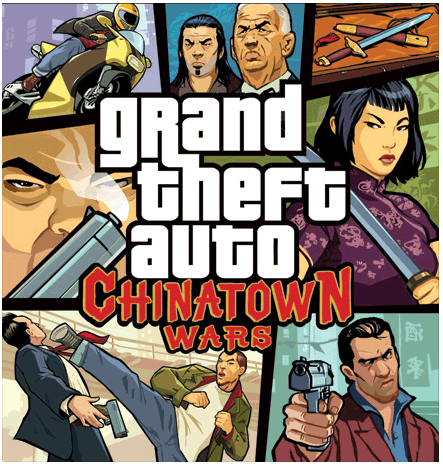
Grand Theft Auto: Chinatown Wars Coming To iPhone

Rockstar Games have announced that Grand Theft Auto: Chinatown Wars, from Rockstar Leeds, is coming to iPhone Grand Theft Auto: Chinatown Wars iPhoneand iPod Touch later this year. The award winning game is making it’s way from the Nintendo DS to the PSP platform and now the iPhone & iPod Touch.

“Chinatown Wars is a perfect match for the iPhone and iPod touch,” said Sam Houser, Founder of Rockstar Games. “We are very excited to bring this incredibly ambitious version of Liberty City, with this level of detail and immersive gameplay on Apple’s new gaming platforms.”

The game follows the story of Huang Lee, a young Triad who travels to Liberty City after the mysterious death of his father. Players will navigate their way through the streets as they uncover the truth behind an epic tale of crime and corruption within the Triad crime syndicate, delivering the unprecedented amount of depth that has become a true trademark of the Grand Theft Auto franchise.